6.1 Changing the Password
Change the password for the login account.
1 Select the  “Settings” button in the upper-left corner of the screen and then select the “Option” button.
2 Select the “Change Password” button.

The “Change Password” window is displayed.
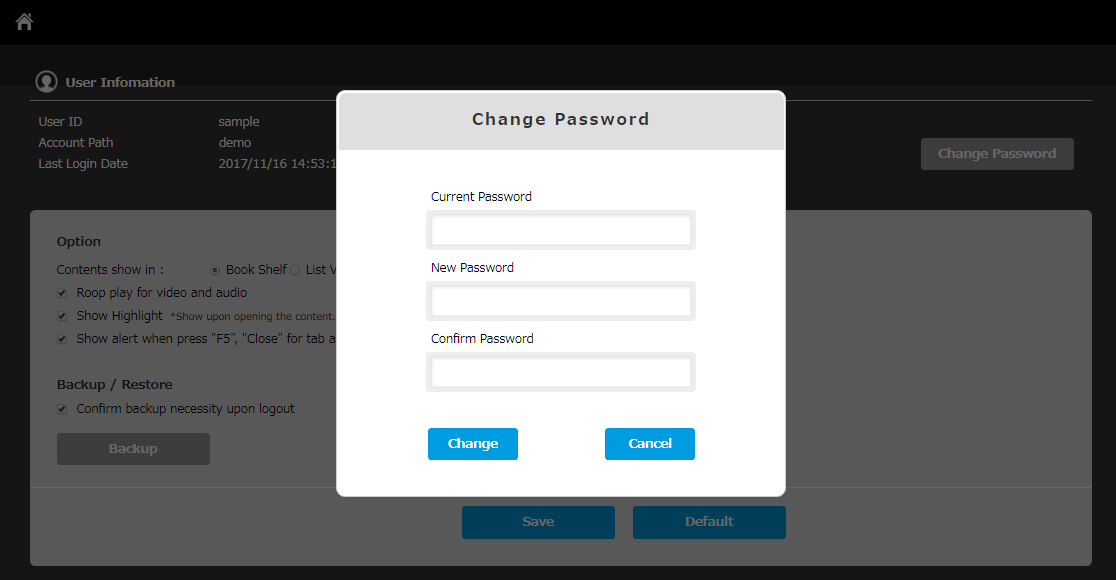
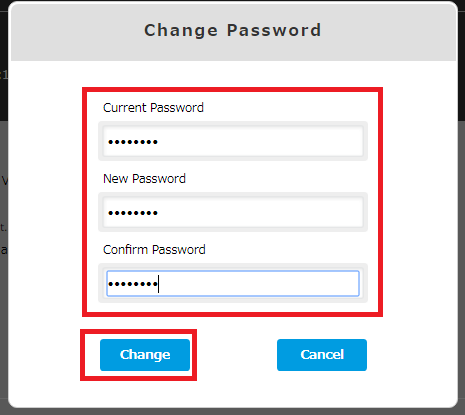
3 Enter the current password in “Current Password” and a new password in “New Password”. Re-enter a new password in “Confirm Password”, and then select the “Change” button.
Memo
・For password, the following restrictions are applied.
- A password needs to be a combination of one-byte alphabet characters and numbers.
- A password needs to have at least six characters.
- The same character must not be used three or more times continuously.
- Use of four or more characters that were used in the previous password is prohibited.
・For reissuing a password in the case of a loss of your current password, contact your administrator.
6.2 Change option settings
Change the settings of the option.
1 Select the  “Settings” button on the upper left corner of the screen, and then select the “Option” button. The option screen is displayed.
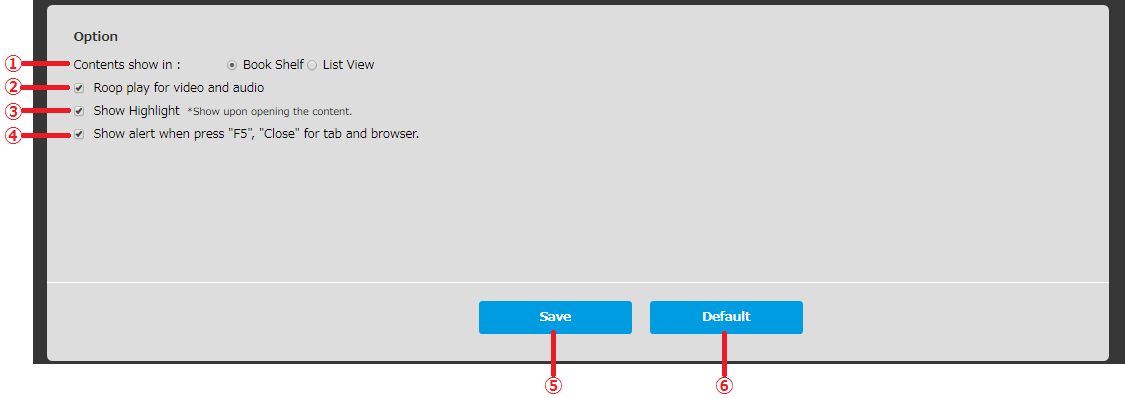
Change the settings of the option.
| ① | Contents show in: Book Shelf / List View |
The initial display of My Library which displayed after logging in can be set to a bookshelf type or a list type. |
| ② | Loop play for video and audio | Videos / audios are played repeatedly by checking the box. When you clear the check box, it is stopped when it is played to the last. |
| ③ | Show Highlight | Highlighting is shown as default for the contents with highlight information by checking the box. Highlighting is not displayed as default when you clear the box. |
| ④ | Show alert when press “F5”, “Close” for tab and browser. | By checking the box, an alert message is displayed when the web browser application is terminated forcibly or reloaded by pressing “F5”. |
| ⑤ | Save | Save option settings of ①~④. |
| ⑥ | Default | Set the option settings back to the initial status. |
6.3 Check version
The version of your application can be checked.
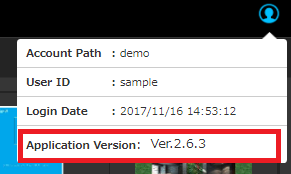
1 Select the icon  in the top right corner in My Library.
2 After the “User Information” is displayed, please check the “Application Version” in the bottom.