It has been reported that when the smart catalog application is launched as usual, the application is forcibly logged out unexpectedly and a screen for agreeing to the terms of use or a screen for entering login information is displayed. If the user has not performed the "initialization (provided only for iOS application)" operation or logout operation immediately before these cases occur, the following may be the cause of these events.
1. If there is a setting to lock the app after a certain period of time
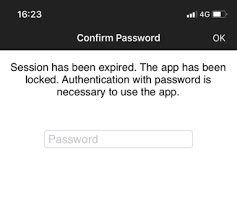
As a contract environment setting by the application, there may be a setting that requires you to re-enter the password after a certain period of time has passed after logging in to the application. The interval type is "immediate", "1 day", "30 days", "90 days", or "none". If there is a setting other than "none", and after the specified number of days passed, a screen for entering the password will be displayed, and if you enter the correct password, it will return to the state you were using until just before.
On this screen, the application will not be locked no matter how many times you enter the password incorrectly. The password entry screen displayed in this case is as shown as below. If you forget the password, please contact the your admin.
2. If the account information (login ID or password) is changed by the administrator
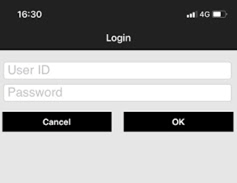
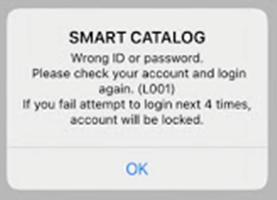
If the password is reissued by the operation administrator, such as when the password is forgotten, a screen requesting login with the changed account information will be displayed. The password entry screen displayed in this case is as shown as below. If you enter the wrong ID and password combination five times in a row, the application will be locked for one hour. There is no systematic way to unlock this lock, so wait an hour and try again.
3. If the account is deleted by the administrator or the device ID is deleted (account deactivated)
If the account is deleted by the administrator, you will not be able to log in with the account you were using, and you will be logged out. The administrator will deactivated the account by unlinking the account and device ID, and after a certain period of time, a screen asking you to log in again is displayed. If you log in with the same account as before logging out, you will be returned to the state you were using until just before. If you log in with a different account, it will be initialized, recognized as a "new login", and all downloaded and viewed content will be deleted. The password entry screen displayed in this case is as shown as below. If you enter the wrong ID and password combination five times in a row, the application will be locked for one hour. There is no systematic way to unlock this lock, so wait an hour and try again.
4. If the device does not have sufficient free storage space
When the amount of storage in the device becomes insufficient, the application will be initialized in accordance with the specifications of the OS. As a relevant information, please refer to the following as well.
<iOS App> Is there a limit on the number of items of content that can be downloaded?
5. If the cause is the OS <for iOS version application>
It has been reported so far that the data of the smart catalog application saved in the OS is deleted and the application seems to be initialized due to some condition of iOS instead of the operation by the user.If the data in the app has been completely deleted, the screen displayed is as shown below.
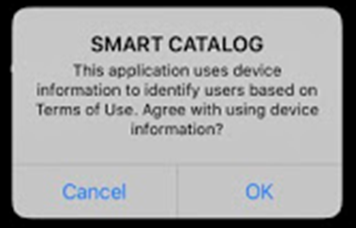
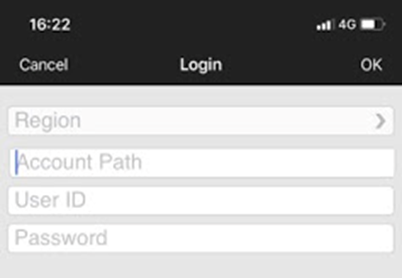
There have been reported the event as follows; a screen asking for consent to the terms of use appears, and the same pop-up is displayed over and over again regardless of whether you press "OK" or "Cancel", and cannot proceed.
If this happens, you can resume the app with your previous data in the following operation.
1. iOS Settings > General > iPad/iPhone Storage
2. Tap "Smart Catalog"
3. Tap "Offload App"
4. Tap "Offload" on the confirmation screen.
*Offloading "Smart Catalog" will delete the app but keep its downloaded documents.
5. After processing , Tap "Reinstall App"
*If you use the inhouse app, please check with the administrator how to reinstall.
6. After reinstallation, please check the app.
If this happens repeatedly, you will need to delete the app from your device, reinstall it, and log in again to resume using the app. In that case, it will be recognized as a "new login", and all the downloaded and viewed contents that were used until just before this event occurred will be deleted, and the usage will be resumed from the initial state. If it occurs over and over again, consider replacing your device.
The exact cause of this event has not been identified, but it is considered to be the behavior due to the deletion of the application data in the OS, so it is a preliminary measure, we recommend you to set your device as below.
iOS Settings > App Store > Set as "OFF" for Remove unused App
6. If the cause is the OS <for Windows version application>
If Windows update is not the latest one, please update it to be the latest.